
Multi-step processes on a visual canvas
A workflow chains triggers, tools, agents, and branches into a process that runs the same way every time. Drag nodes onto the canvas, connect them, and configure each one.
Running
Several steps, one accountable run
A workflow is more than a chain of prompts. Each step is an agent or a tool with its own inputs, and the run keeps the record of what happened at every hop.
- Branches and conditions
- Approvals where risk lives
- Replay any run, step by step
Invoice approval workflow
5 steps · 1 branch · 1 approval
AP inbox · vendor: Meridian Supply
0.00 msAgent reads the PDF, matches it to PO #7734
$18,420 total
Routed to Priya (AP lead)
netsuite__create_bill
Workflows your whole organisation shares
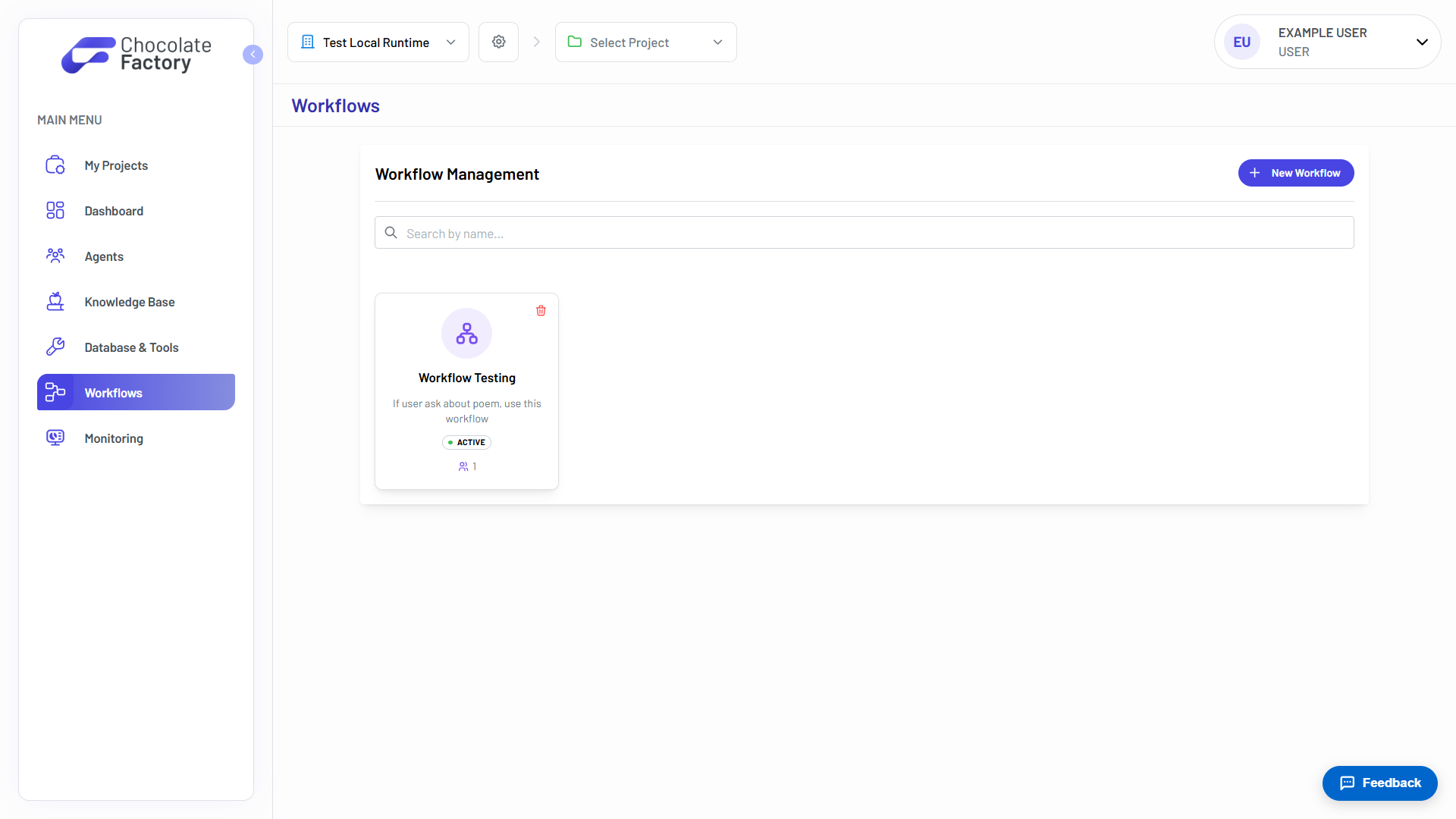
Workflows are built once and reused. Each carries a description of when it should fire, whether it is active, and how many agents call it.
- Shared across the organisation
- Active or paused per workflow
- Agent usage count
Draw it yourself, or describe it
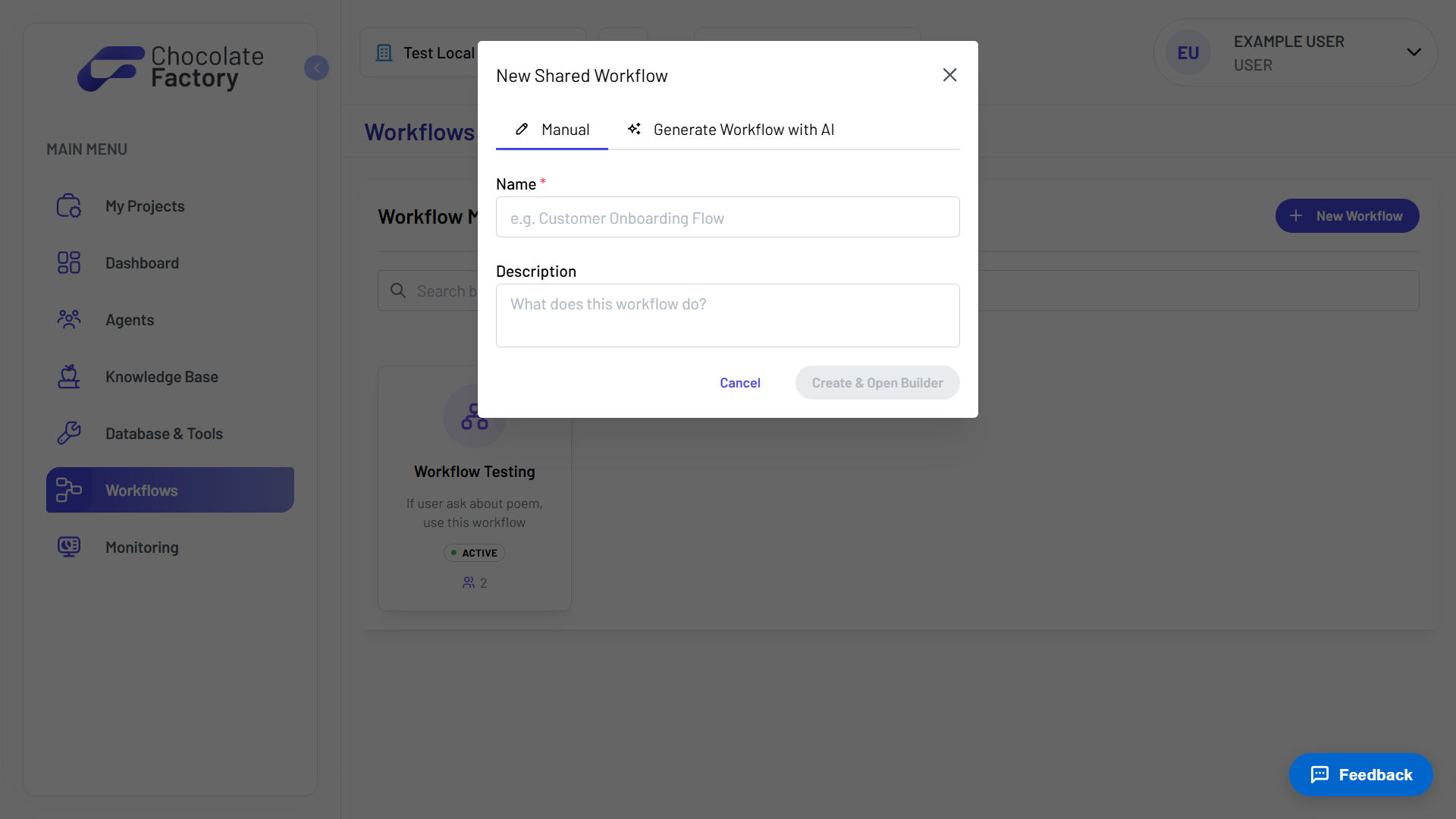
Name the workflow and open the builder. Or switch to the AI tab, describe what the workflow should do, and have the first draft generated for you.
- Manual builder
- Generate workflow with AI
- Opens straight into the canvas
Nodes, edges, and conditions
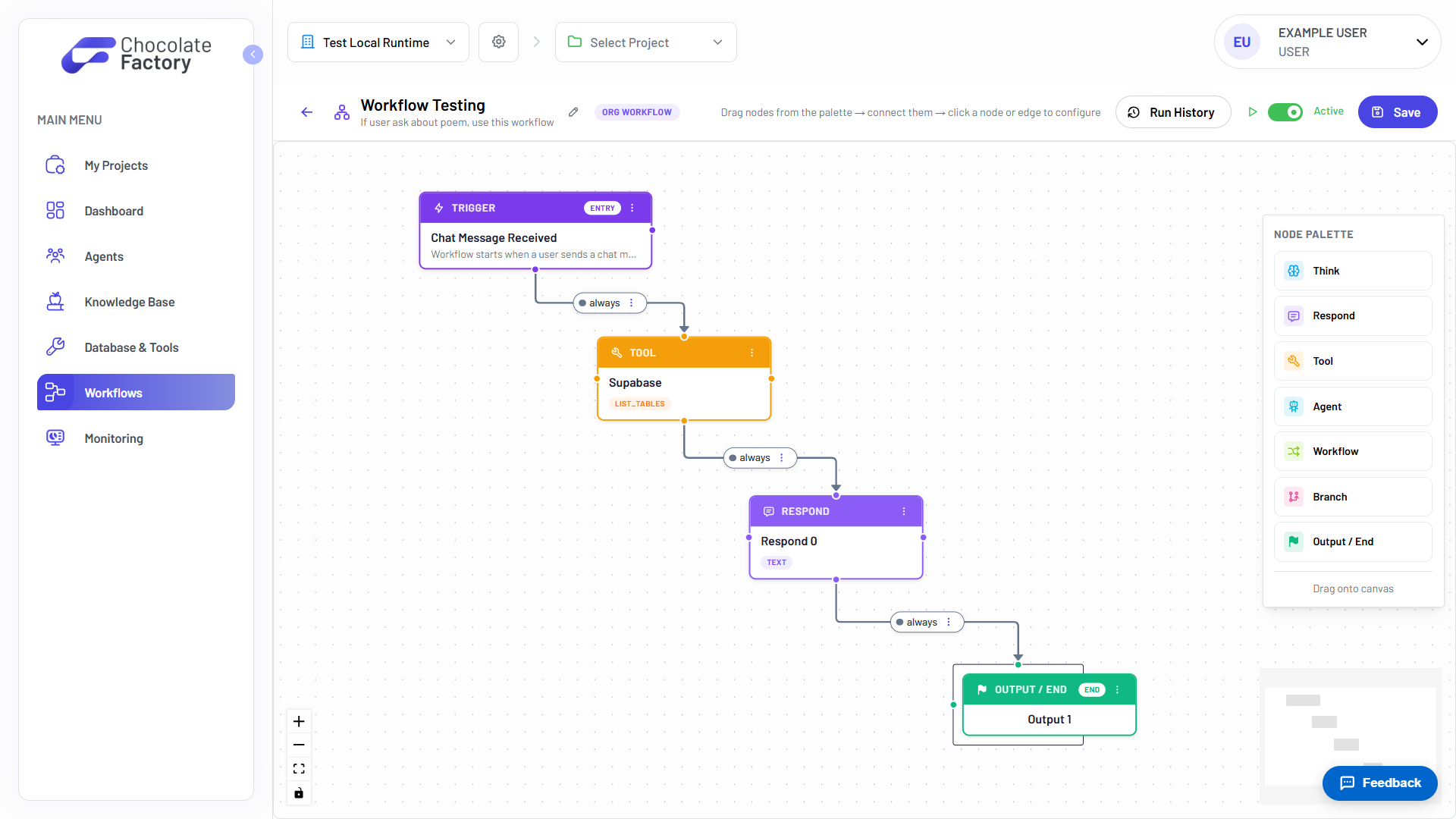
Drag nodes from the palette, connect them, and click a node or edge to configure it. Edges carry conditions, so a workflow can branch on what actually happened.
- Think, Respond, Tool, and Agent nodes
- Branch and Output / End nodes
- Conditions on every edge
- Triggers such as Chat Message Received
Replay any run, step by step
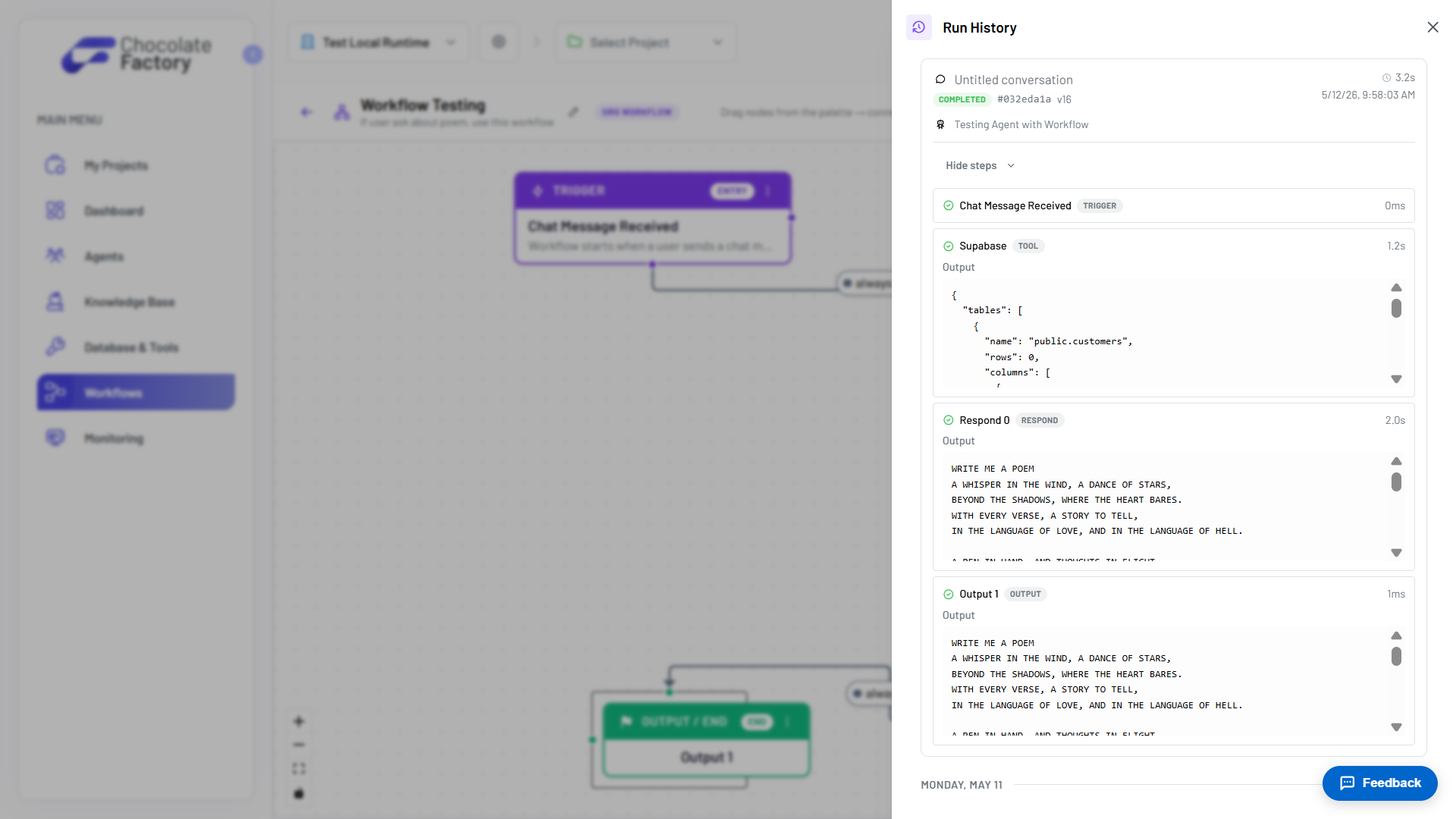
Every execution is recorded. Open a run and step through it: which node fired, what it returned, and how many milliseconds it took.
- Per-step inputs and outputs
- Timing on every node
- Versioned runs
- Completion status per run
See Workflows in action
Spin up your first agent, or walk through Chocolate Factory with our team on a live demo.